


Create isolated country shape maps in Adobe Illustrator
A clear and focused map conveys a story faster than a thousand words. Isolated country maps, where just one area is highlighted without surrounding borders or visual clutter, are especially powerful in media and communications.
And now, there’s a faster, more intuitive way to work with maps in your design workflow. Simply generate the map you need in Mapcreator, export it as a true vector SVG, and bring it straight into Adobe Illustrator.
You can isolate, style, and edit a professional-quality map inside your design environment, all while keeping full control over your vector file.
Pro tip: Since our exports are true vectors, scaling or customizing your map never compromises quality, and our PDF with CMYK colors is ready for your print products.

Why create extracted country maps?
Masked maps are perfect when you want to focus attention on a single country without surrounding geographic clutter. With Mapcreator, you can generate high-quality vector maps that you can import straight into your design software.
Use case: Need a map of France for a luxury travel brochure? You can have it styled and embedded in your design in under a minute.


How to create isolated country maps in Illustrator
Firstly you will have to create your map inside Mapcreator. Here, you just add the area you want to isolate on top of your map and export as an SVG. Afterwards, you can follow these steps:
- Import the map with a shape file from Mapcreator in Adobe Illustrator.
- Create a new layer and move the area shape to this layer.
- Create another new layer and move all labels you want visible to this layer.
- Group the remaining layers together: CMD+G or object -> group.
- Convert the new layer including the area shape to a compound path: CMD+8 or object -> compound path -> make.
- Move the new layer including the map layers on top, and hide this for now.
- Select the new layer including the area shape and the grouped map layer and create a clipping mask: CMD+7 or object -> clipping mask -> make.
- Open up the new layer including the map labels again. Ungroup these (SHIFT+CMD+G or object -> ungroup) and remove the labels that are outside of your map area.
Save time. Use Mapcreator.
When you’re on a deadline and the story is still developing, there’s no time to figure out complex editing. Instead, use Mapcreator to bring maps directly into your trusted design environment—and keep every element fully editable.
Perfect for tight deadlines, fast revisions, and professional maps.
Pro tip: Did you know this can also be done with cities or states? Have a look at Texas, United States below! It can even be done with any type of shape, spot our logo there..?


Don't forget to share this post!
Deeper understanding of maps
For mapping tips, updates, and deep dives for the cartographically curious.
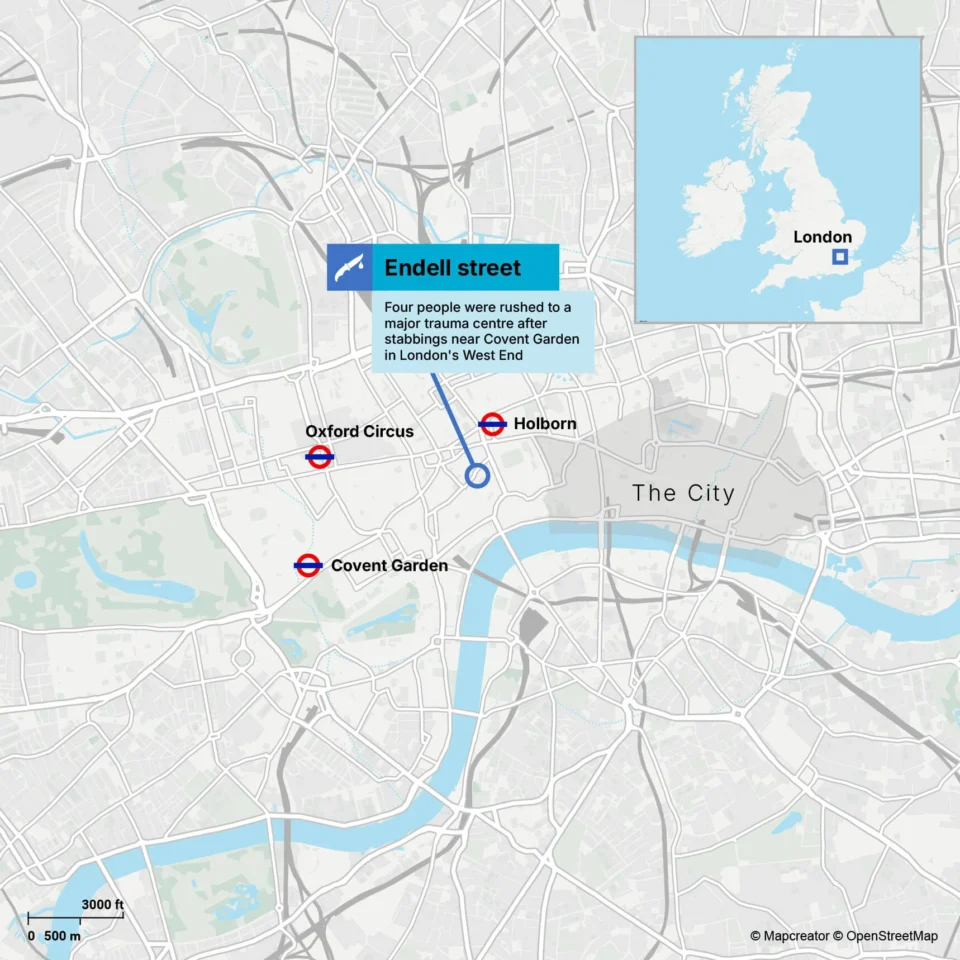
POV: Should have been a static map
Interactive maps are powerful. They let readers zoom, pan, click, explore, and discover details at their own pace. But not...
Read more
How influencers create maps that start conversations
Graphic designer, geo-influencer and Mapcreator ambassador Frans van der Vleuten uses maps to turn curiosity into conversation. We spoke with...
Read more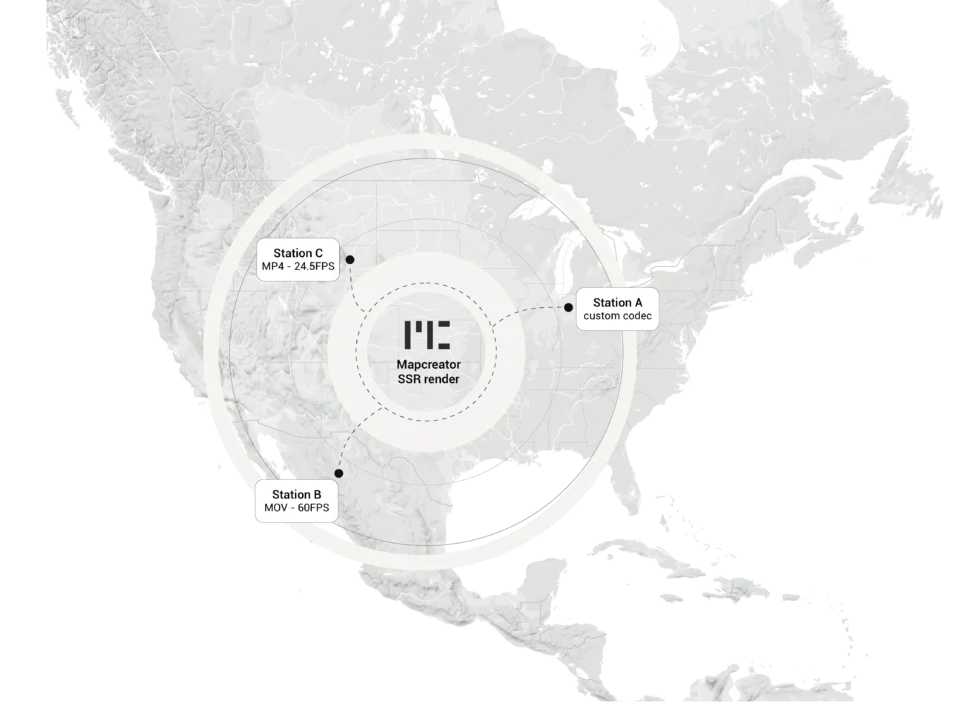
Cloud Rendering: size and speed do matter
For years, Mapcreator has made it easy to get maps out of the tool in whatever format your production workflow...
Read more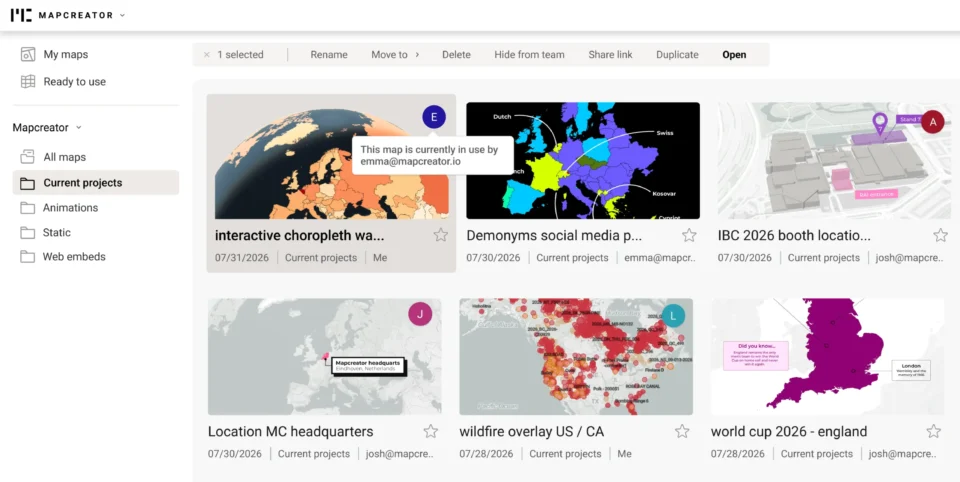
Co-editing is here: Maps now move between teammates
Some map designs start with one person and stay that way. Nice and tidy. Others? Not so much. Maps rarely...
Read more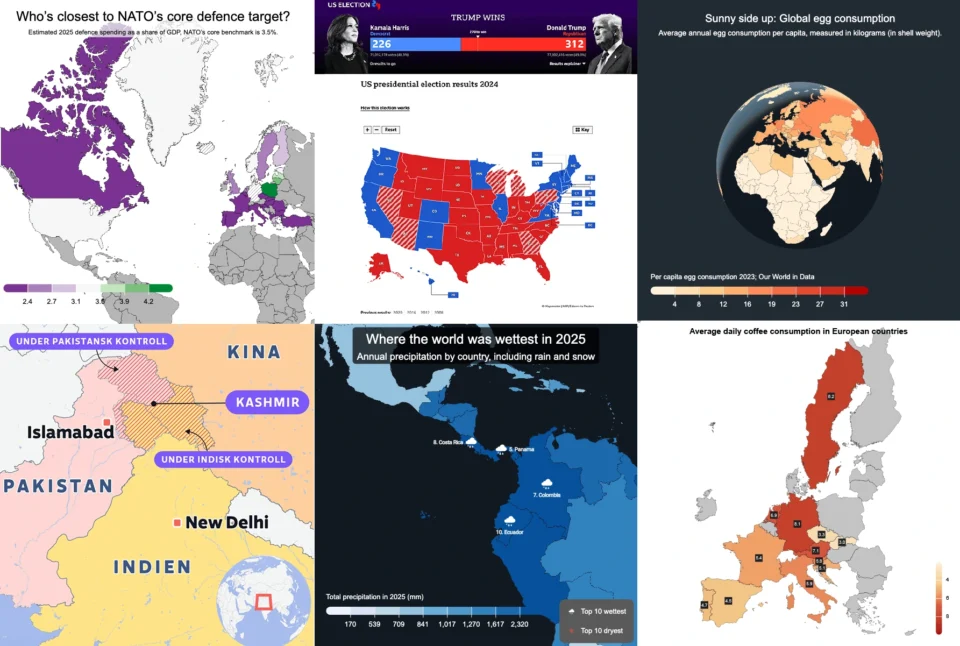
Choropleth maps in Mapcreator just got easier
A choropleth map is a color-coded map that shows how values differ between geographic areas, such as countries, regions, or...
Read more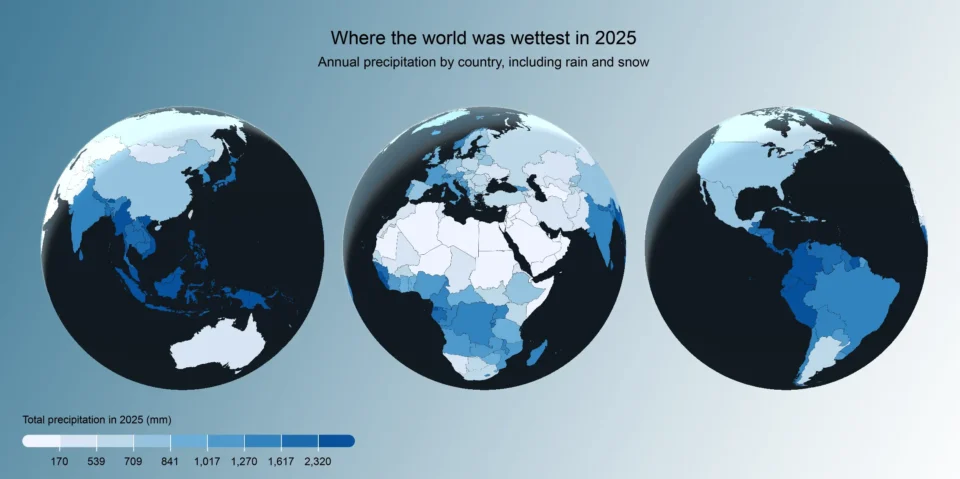
Why bringing your own data can make for better maps
Some maps do not begin as maps. They begin as bits and pieces of information waiting to make sense together....
Read more


