


Import a spreadsheet with automatically numbered icons
If you’re manually placing numbered icons one by one onto a map, stop right there; we need to have a chat. There’s a better way. A faster, smarter, easier way. Over 1k locations to import? No problem.
Enter: data binding in Mapcreator. With data binding, you can upload a spreadsheet that automatically adds locations with numbered icons on your map — no click-heavy dragging or late-night label rearranging required.
What is data binding, anyway?
Think of data binding as your personal assistant that actually gets things right. By importing a spreadsheet (.XLSX, or even .TXT and .CSV) or other datafiles, Mapcreator links your data columns, like coordinates, labels, numbers, directly to visual elements on the map.
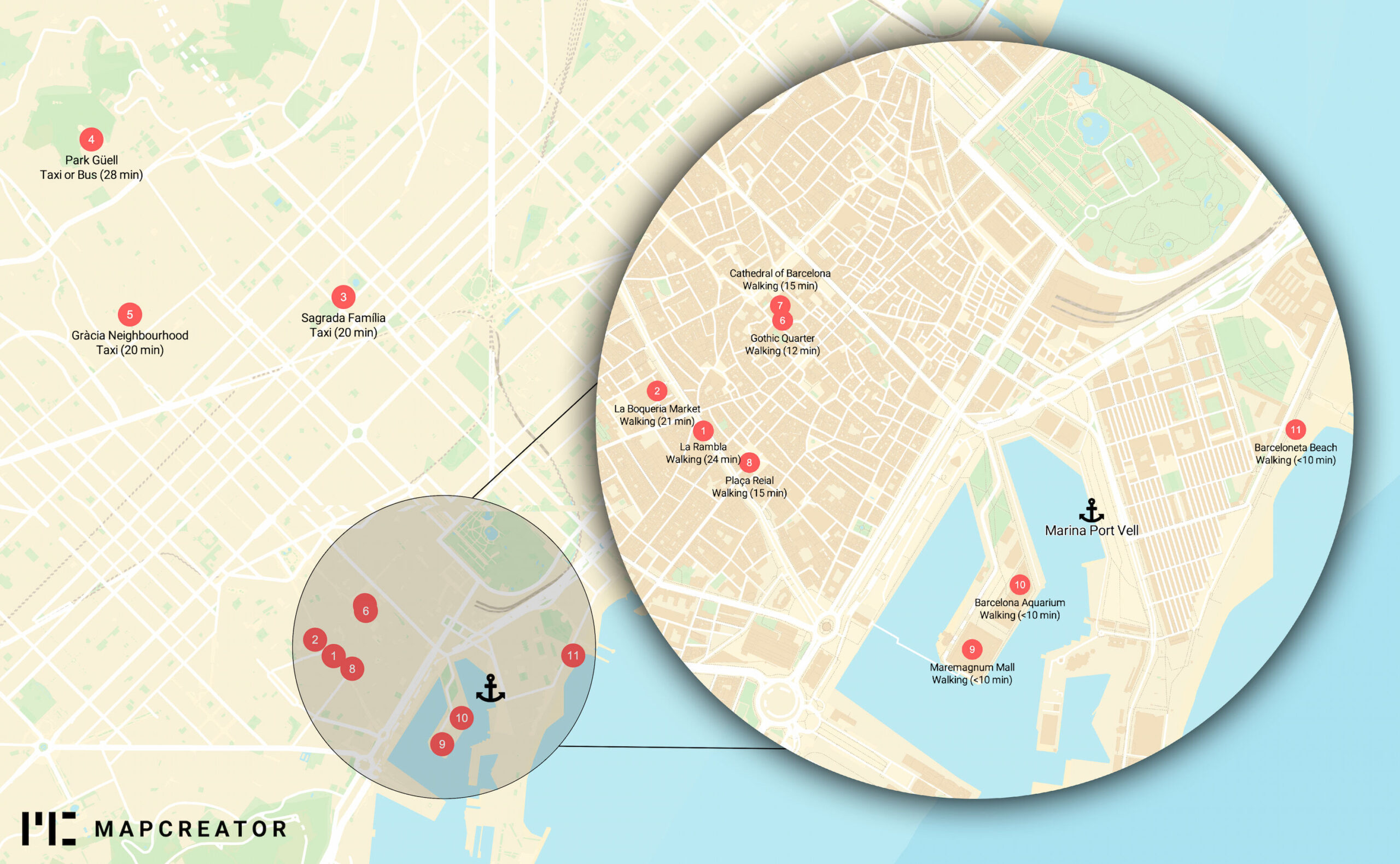
In this use case, you’re using data binding to place icons with index numbers, which is ideal for:
- City tours, museum stops, or even pub crawls
- Step-by-step guides (looking at you, urban trail planners!)
- Real estate properties
- Transport maps with numbered stops
- Breaking news locations
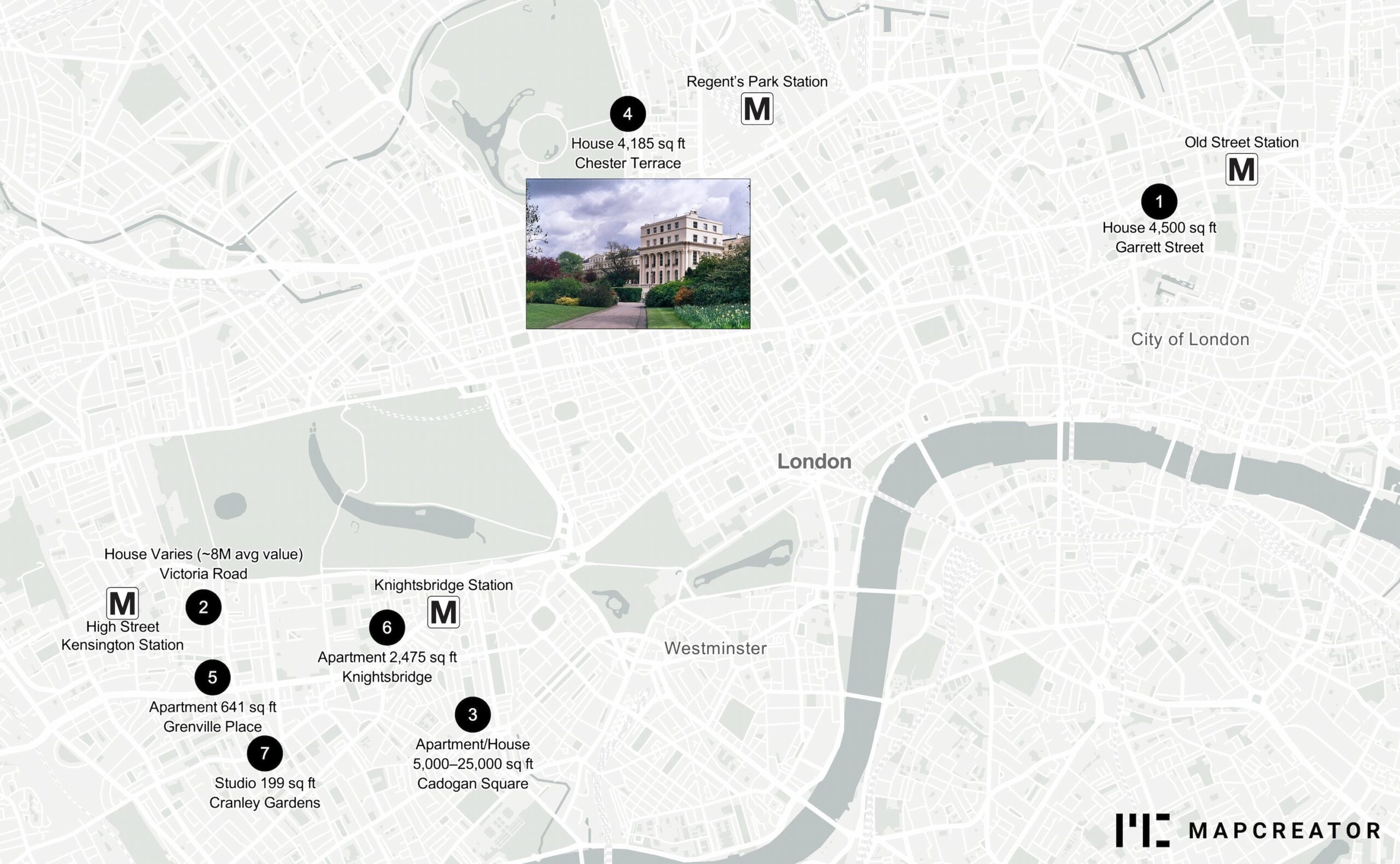
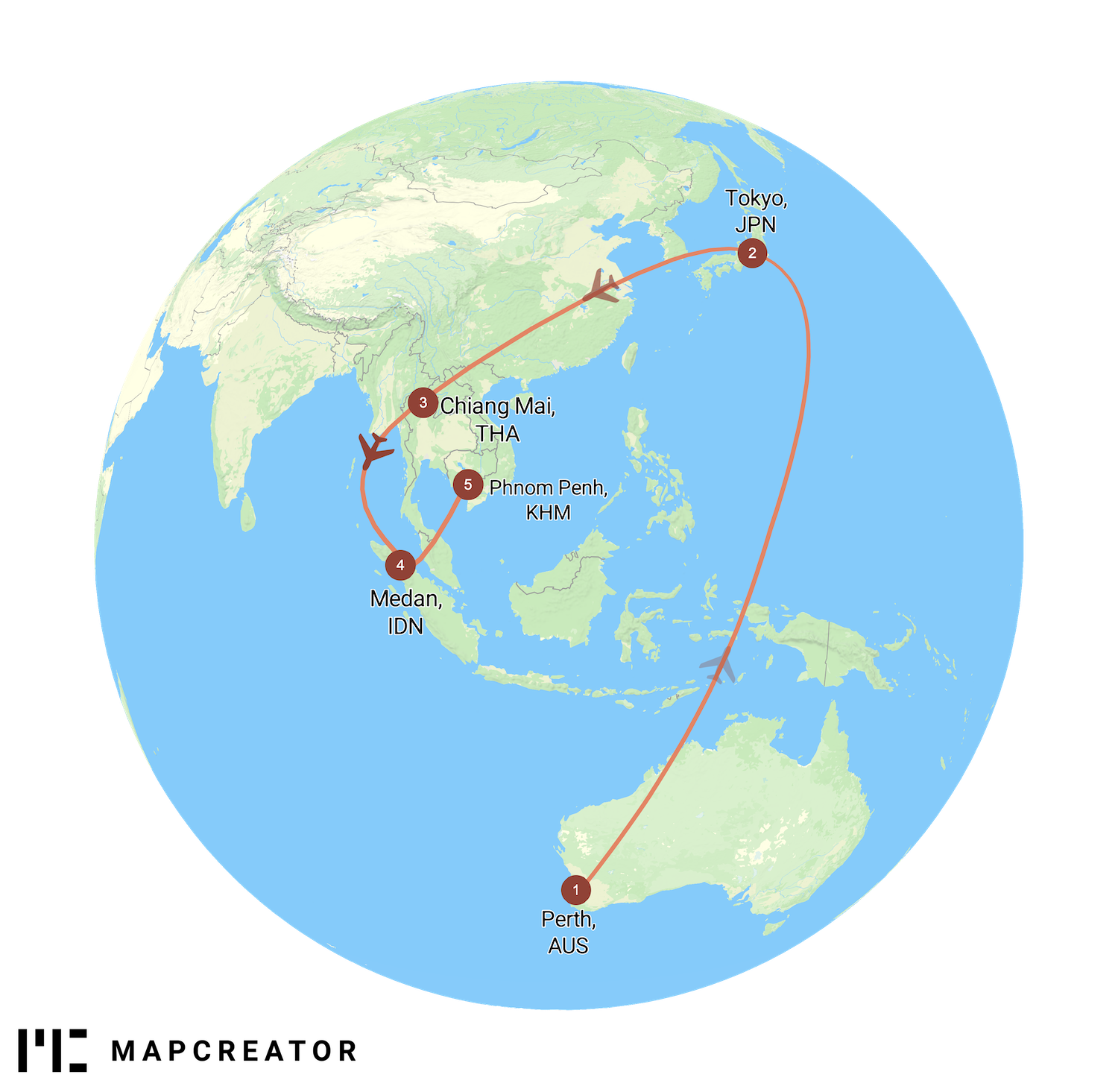
Import a spreadsheet with automatically numbered icons to create this map in under one minute:
Step 1: Drag-and-drop your spreadsheet
Drop your .CSV, .TXT or .XLSX into Mapcreator. The tool detects your headers and suggests which columns to use for geolocation (latitude/longitude or address). Confirm and proceed.
Step 2: Add the numbered icons
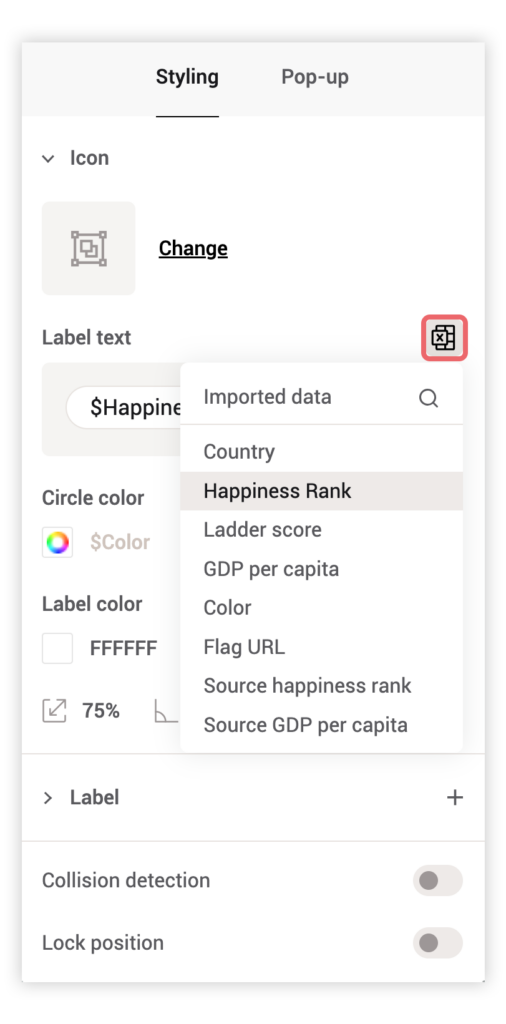
Edit the added location points by selecting them and changing them to a numbered icon. These icons have an editable text field. Then link its text field to the right column from your sheet, using the table icon next to it. They’re labeled instantly — no manual labeling, ever again!
(Optional) Step 3: style your icons
Apply colors from the icon_color column. Whether you want a bold, uniform look or individually styled steps, you’re in control.
Pro tip: Skip the table icon — just type
$-columnnameto quickly select data from your sheet!
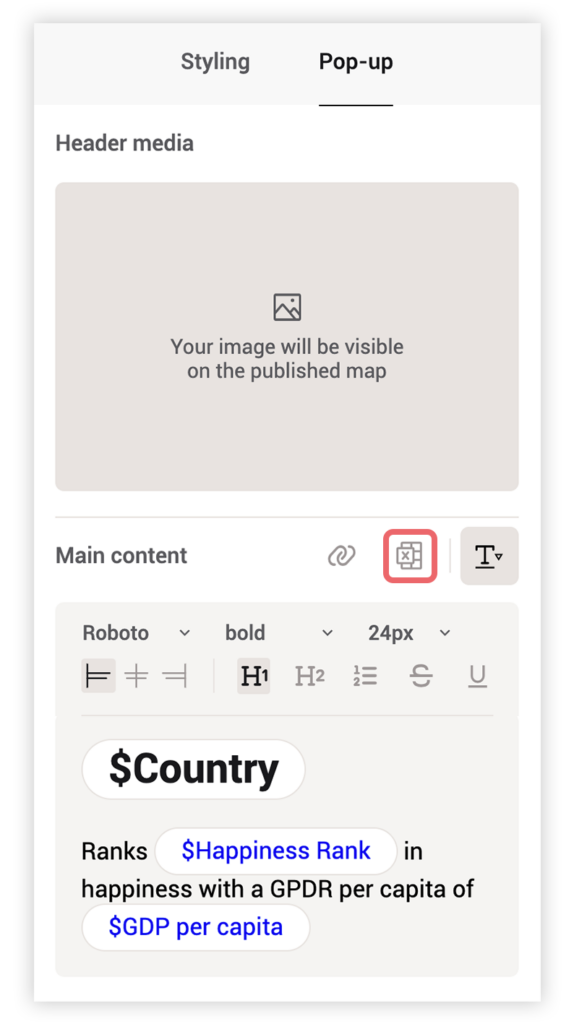
Step 4: Add data to popups
This is where your map becomes more than a graphic — it
becomes a story.
Using the Popup editor:
- Bind the image_url to display a unique visual
- Add text from name, label_text, and description
- Format text for clarity: bold titles, line breaks, font scaling
Each Popup is unique, dynamically generated from your spreadsheet as our tool smartly pulls the data from your cells and connects it to the icons they belong to.
Step 5: Export and share
With everything styled and interactive, export your map as:
- An interactive embed. Want to make changes to your map? Just re-open your project, make any changes and export again. Your map will now automatically get updated.
- A vector SVG for design editing
- A PDF for print or presentations
Pro tip: You can bulk-edit your icons right from the spreadsheet — change colors, sizes, labels, rotation, or even add interactivity across the board. Want to fine-tune just one? Click it again to select and style it individually.
Why users love this feature
Users can go from a raw spreadsheet to a fully styled, interactive map in minutes. All with no need for manual placement, other graphic tools, nor GIS knowledge. It’s flexible enough to handle thousands of entries at once, yet intuitive enough for quick one-off projects. The real magic happens when you link text, images, and colors directly to your data!
Save time, save your wrist
Data binding has never been easier, all while you stay in full control over your data. Did you know Mapcreator’s personal plan allows for (temporarily) unlimited SVGs & PDFs and unlimited interactive maps for only €99 a month?
Don't forget to share this post!
Deeper understanding of maps
For mapping tips, updates, and deep dives for the cartographically curious.
POV: Should have been a static map
Interactive maps are powerful. They let readers zoom, pan, click, explore, and discover details at their own pace. But not...
Read more
How influencers create maps that start conversations
Graphic designer, geo-influencer and Mapcreator ambassador Frans van der Vleuten uses maps to turn curiosity into conversation. We spoke with...
Read more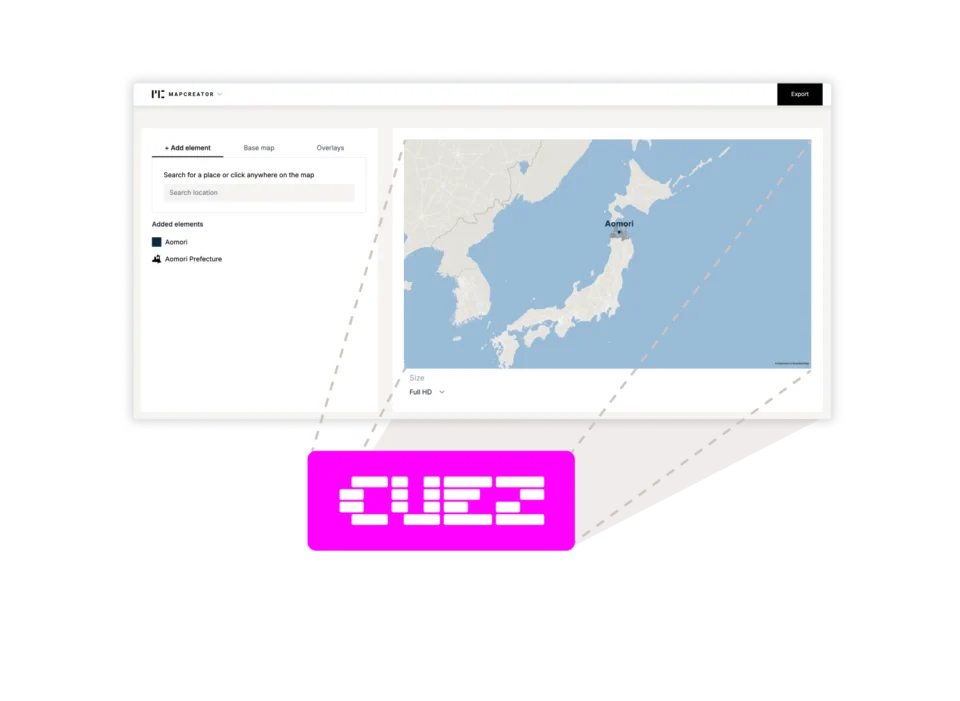
Locator maps inside your CUEZ rundown
The best newsroom tools are the ones that fit naturally into the way journalists already work. That’s why we’re excited...
Read more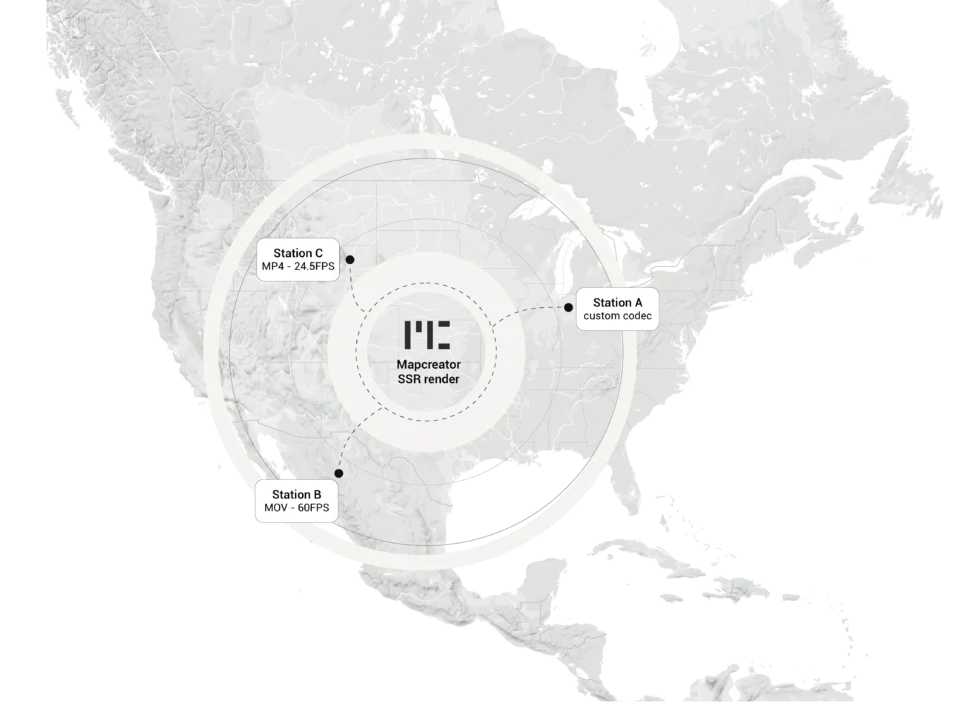
Cloud Rendering: size and speed do matter
For years, Mapcreator has made it easy to get maps out of the tool in whatever format your production workflow...
Read more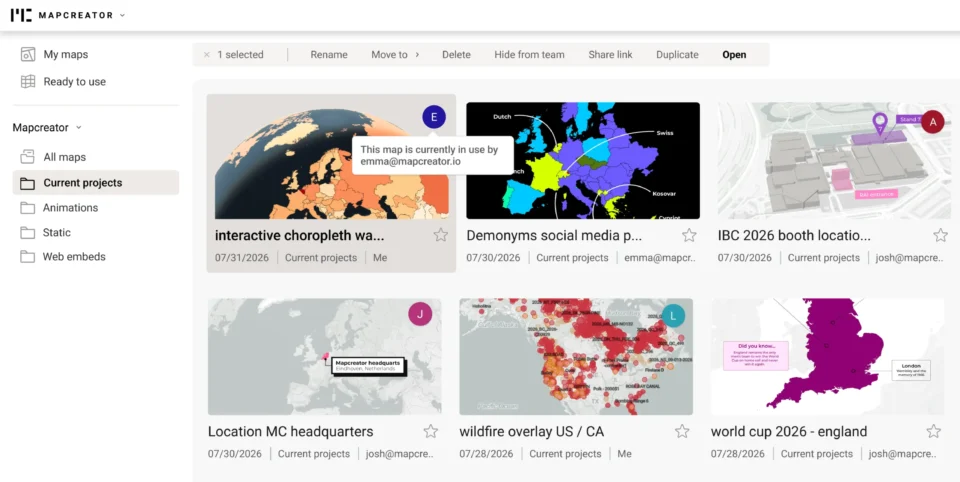
Co-editing is here: Maps now move between teammates
Some map designs start with one person and stay that way. Nice and tidy. Others? Not so much. Maps rarely...
Read more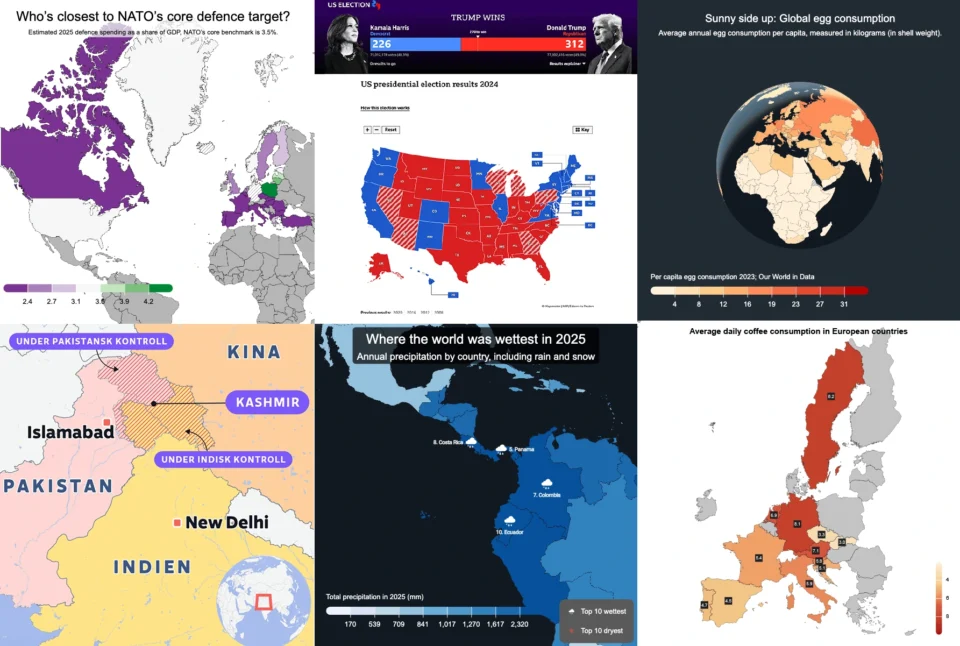
Choropleth maps in Mapcreator just got easier
A choropleth map is a color-coded map that shows how values differ between geographic areas, such as countries, regions, or...
Read more


