


Hidden features in Mapcreator you might not be using (but should!)
Mapcreator is a powerful tool for designing customized maps, but did you know it has some hidden features that can take your map-making to the next level? In this article, we’ll explore four lesser-known, yet incredibly useful tools within Mapcreator that can help you improve your maps.
1. Grid and label-free zone: fine-tune label placement
One of the most useful hidden features in Mapcreator is the grid & label-free zone tool. This allows you to hide labels in specific parts of your map—whether at the top, bottom, left, or right—so you can maintain a cleaner look in certain areas. The accompanying grid helps you visualize and adjust these spaces with precision.
How it works:
- Open the grid and label-free zone feature located on the bottom right of your screen.
- Activate the grid and use the label-free zones to remove labels from these areas.
- Use the grid lines to see how zones are divided and drag them to resize the label-free areas according to your needs.
Note: The grid is only visible while editing and will not appear in the exported map.
This feature is great for reducing clutter in key areas of your map while keeping the layout organized and professional.
2. Detail level: customize map details without zooming
Need more control over how much detail appears on your map? The detail level feature allows you to adjust the complexity of your map’s visual elements without changing the zoom level.
Available detail levels:
- Very low – Minimal details, best for the most simple maps.
- Low – Slightly more detail, but still clean and minimal.
- Standard – this is the default level, a balanced amount of detail suitable for most maps.
- High – Increased details, useful for in-depth cartographic projects.
- Very high – Maximum details, best for complex maps but may take longer to load and export.
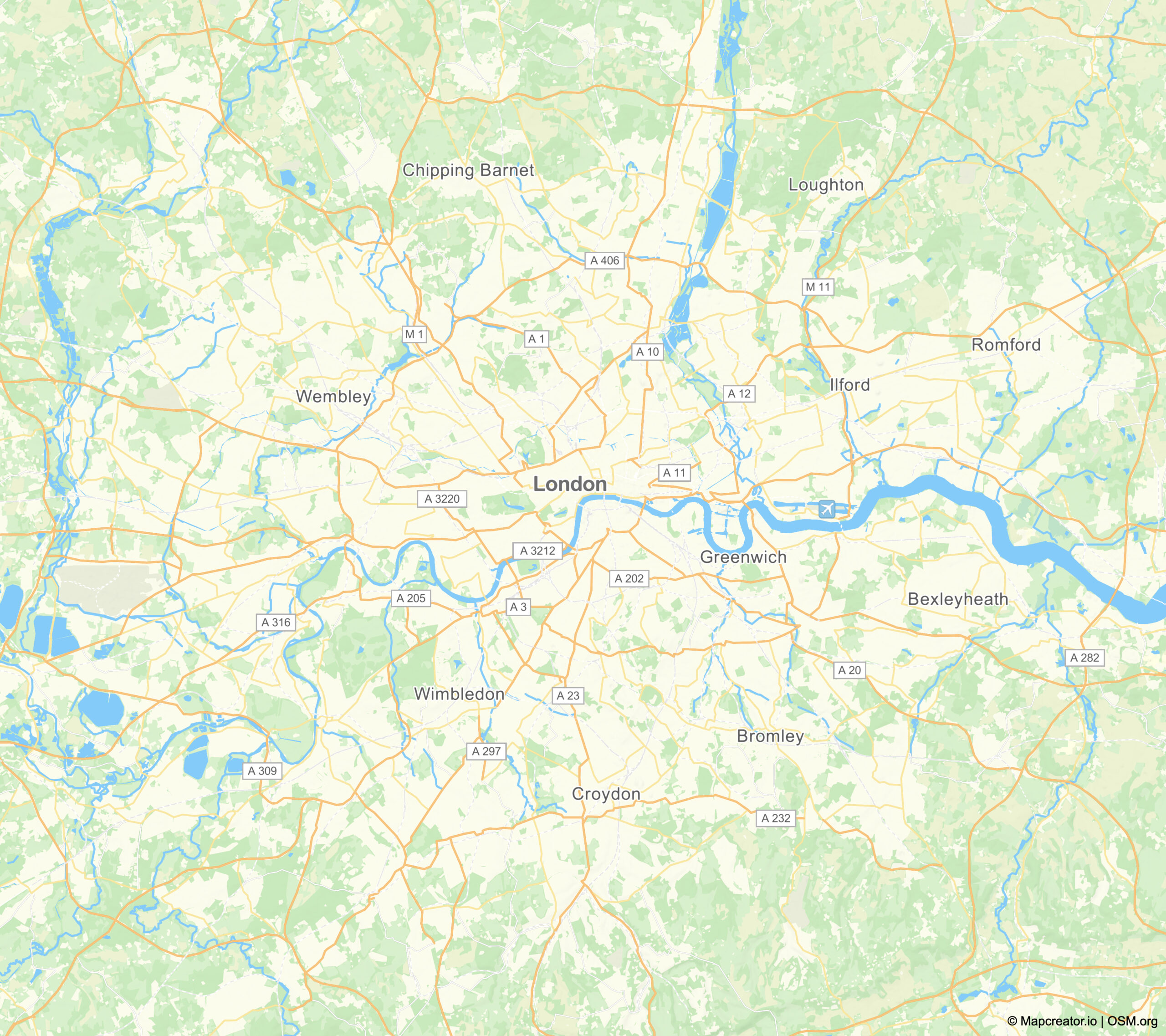
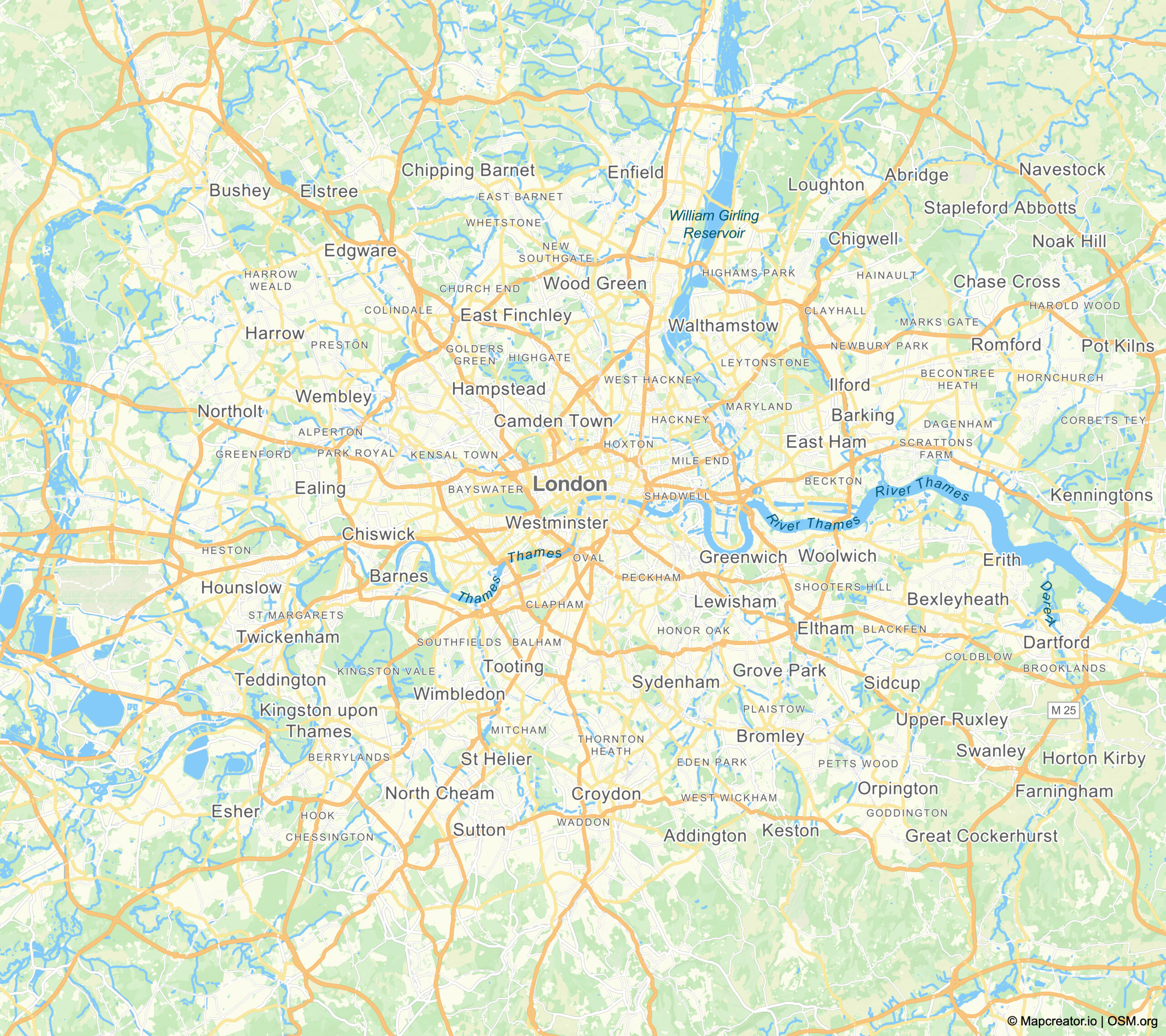
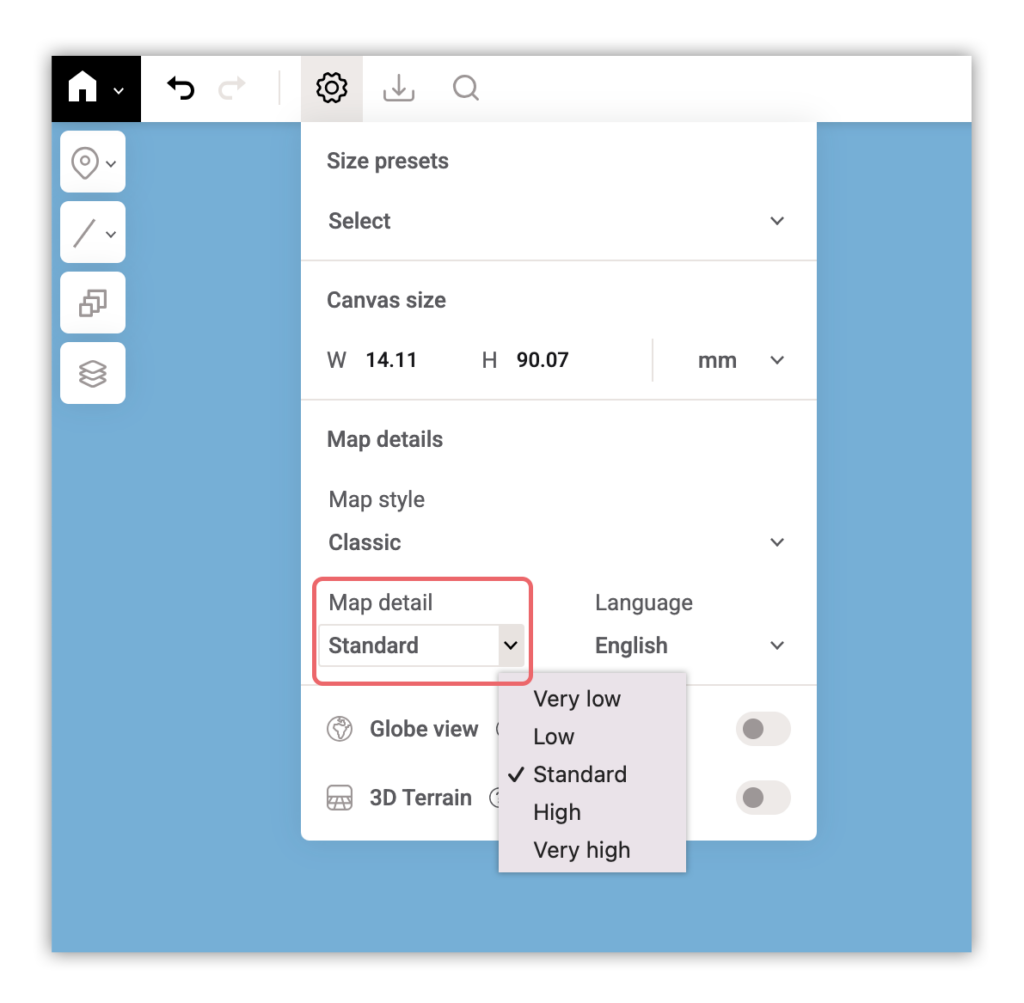
You can find this feature in the project settings menu, where you can use a dropdown to select the detail level for your map.
3. Fit-to-screen button: scale your map without changing the map frame
Are you working on a detailed section of your map and need a closer look without accidentally zooming in? The fit-to-screen button allows you to bring your project closer without altering your zoom level or viewbox.
How it works:
- Click on the fit-to-screen button, found at the bottom right of your screen.
- Your map will appear larger and easier to work on without adjusting your zoom settings.
- To return to the original view, simply click the button again.
This tool is ideal for making detailed edits while preserving your overall map layout, and locking the map can help prevent any unintended changes.
4. 3D terrain & even more depth
Want to add a new dimension to your maps? Mapcreator offers 3D terrain, 3D buildings, and additional depth-enhancing layers that can bring your maps to life.
Features you can turn on:
3D terrain – Found in the project settings menu, this feature adds elevation and depth to landscapes such as mountain ranges, hills and valleys. Tilt your map by holding right click or two fingers on a trackpad and move to see its full effect. Use the slider to adjust the 3D terrain level. By default, it’s set to 100%, but you can slide it up or down to emphasize the extrusion. Pro tip: Combine this feature with the satellite map style for the best results.
Note: this feature does currently not support exporting in SVG / PDF and interactive maps.
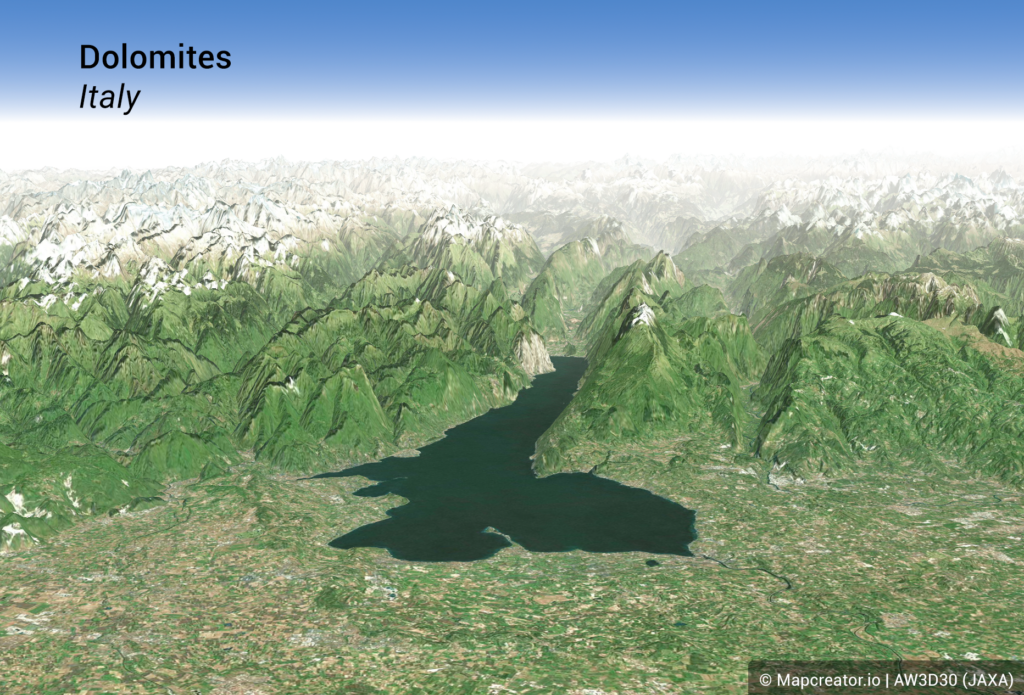
Additional depth layers – Under data overlays > Topography you can also find:
- Elevation contours
- Elevation (grayscale and regular)
- Bathymetry (depth of water bodies)
- Hillshading (light and regular)
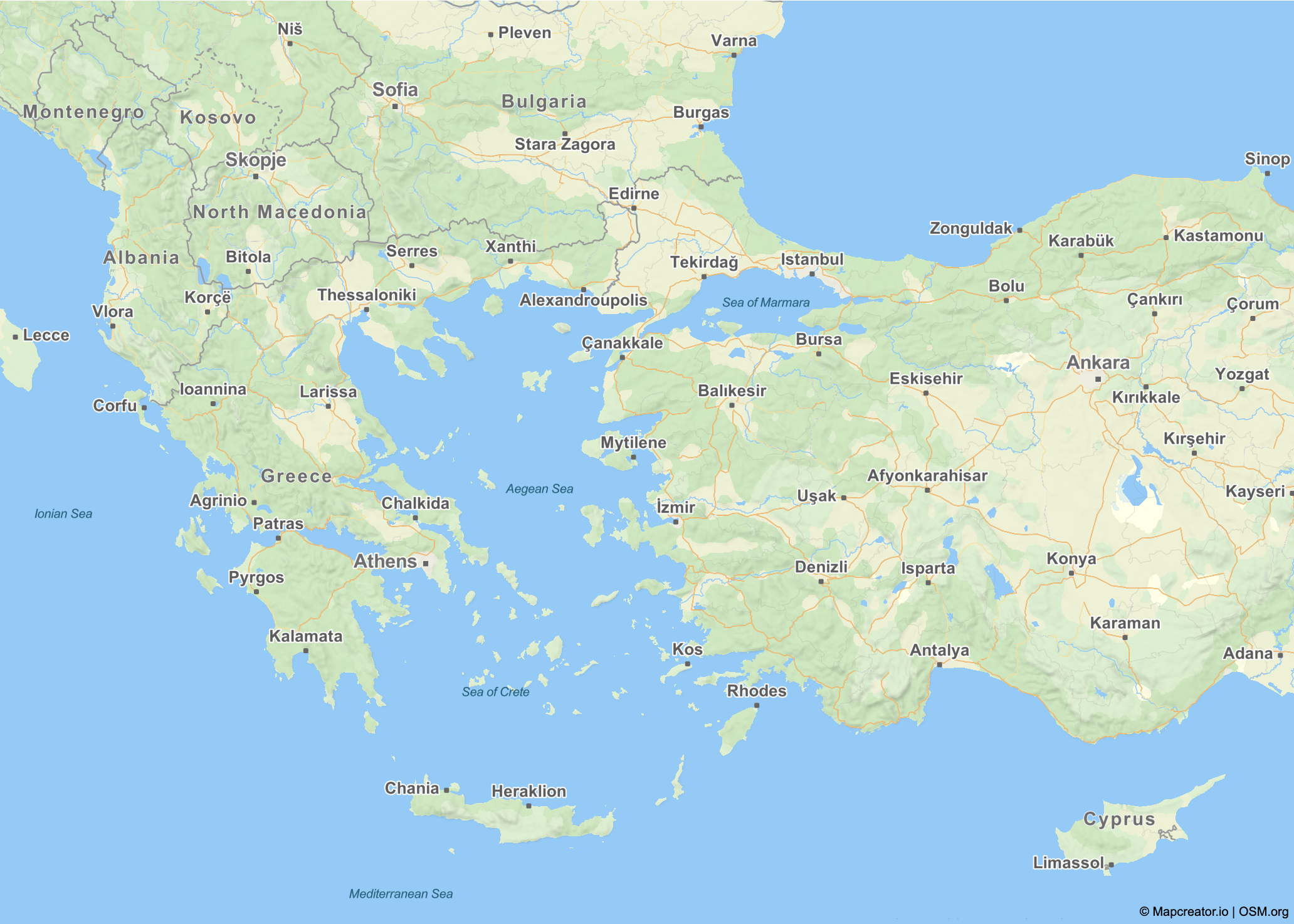
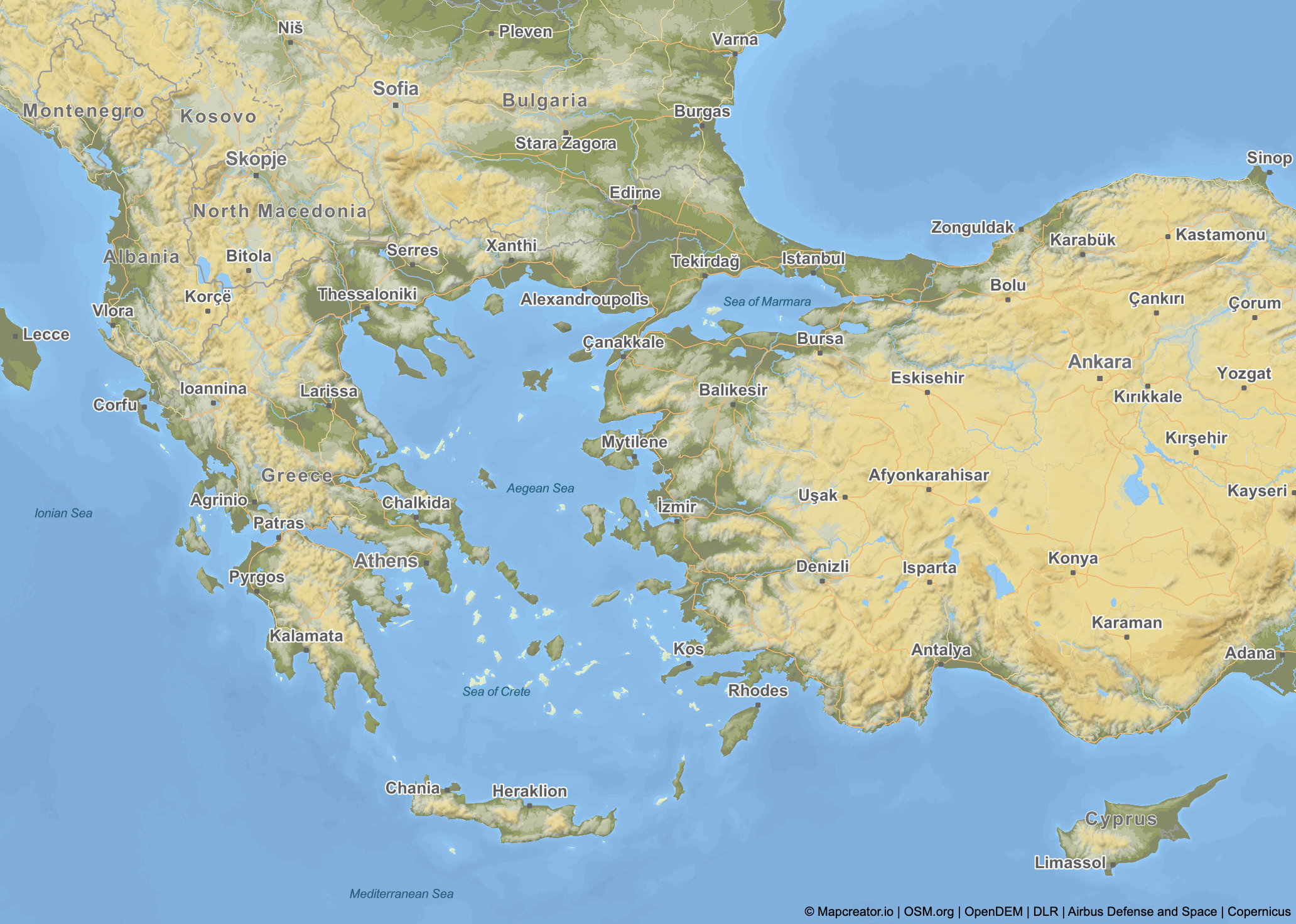
Use the slider above to see the effect that these features can have on your map!
Did you already know these features?
These hidden features in Mapcreator can improve your mapping workflow and help you create more detailed, and visually compelling maps. Whether you’re adjusting label visibility, refining details, zooming in smartly, or adding depth, these tools give you the flexibility to create maps that truly stand out.
Try these features today and use Mapcreator to its full potential!
Don't forget to share this post!
Deeper understanding of maps
For mapping tips, updates, and deep dives for the cartographically curious.
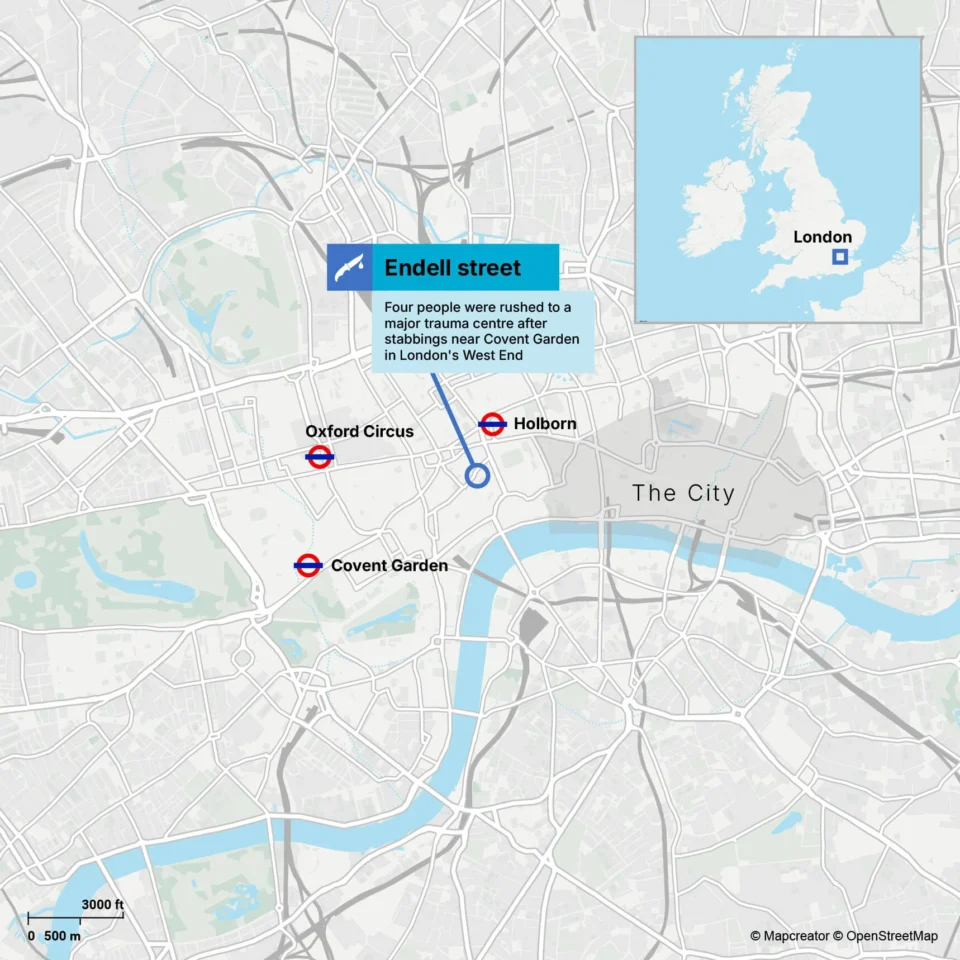
POV: Should have been a static map
Interactive maps are powerful. They let readers zoom, pan, click, explore, and discover details at their own pace. But not...
Read more
How influencers create maps that start conversations
Graphic designer, geo-influencer and Mapcreator ambassador Frans van der Vleuten uses maps to turn curiosity into conversation. We spoke with...
Read more
Cloud Rendering: size and speed do matter
For years, Mapcreator has made it easy to get maps out of the tool in whatever format your production workflow...
Read more
Co-editing is here: Maps now move between teammates
Some map designs start with one person and stay that way. Nice and tidy. Others? Not so much. Maps rarely...
Read more
Choropleth maps in Mapcreator just got easier
A choropleth map is a color-coded map that shows how values differ between geographic areas, such as countries, regions, or...
Read more
Why bringing your own data can make for better maps
Some maps do not begin as maps. They begin as bits and pieces of information waiting to make sense together....
Read more


